Handing clients the keys to their own website is a balance. They want to change things without waiting for you. You want the layout you built to survive the year. These five InlinerWP settings keep both of you happy.
1. Give each role only what it needs
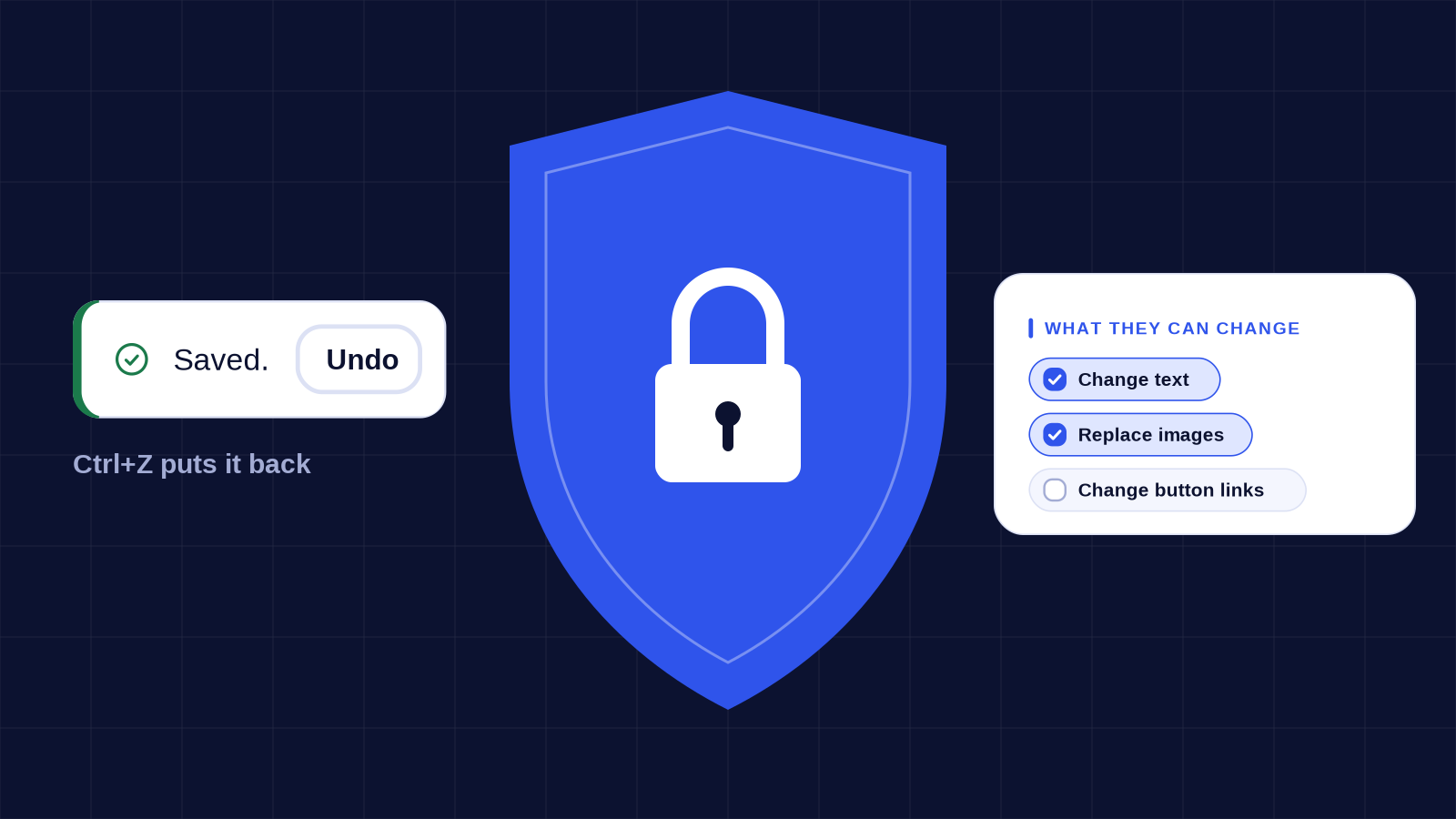
Under Settings, InlinerWP, every role gets its own list of abilities: changing text, button text, links, pictures, picture descriptions, list items and every field. Start small. An author may only need text, while an office manager may need prices and pictures too.
2. Use the Inline editor role
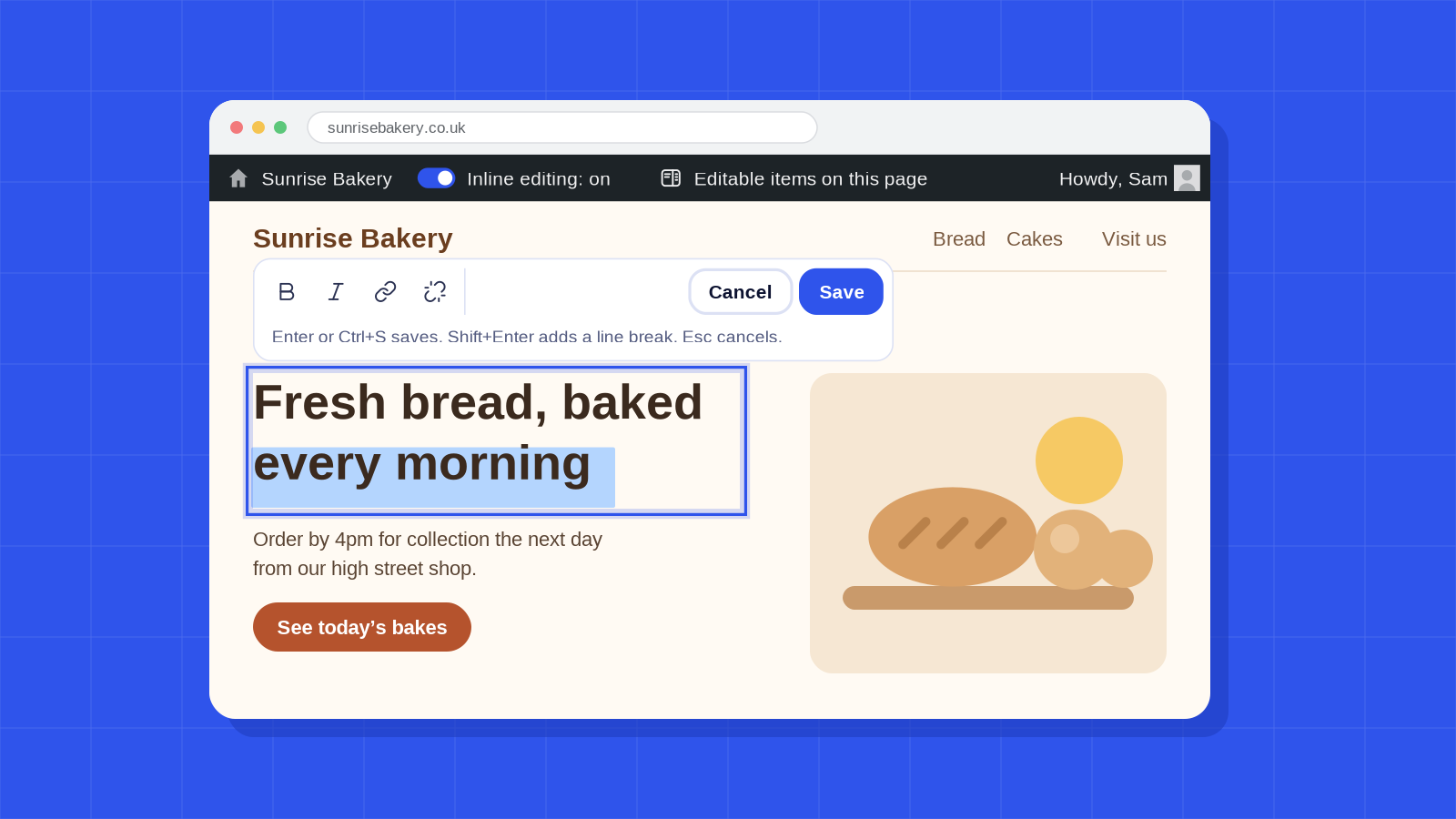
Inline editors change the site on the page and nowhere else. They cannot open the dashboard, the block editor or Bricks. If they need more, tick an extra: adding pages, writing posts, the media library or comments.
3. Protect what must not change
Give any Bricks element or block the class inlinerwp-protected and nothing inside it can be changed inline by anyone. To protect a whole page, template or pattern, list it under Protected content.
4. Let undo do its job
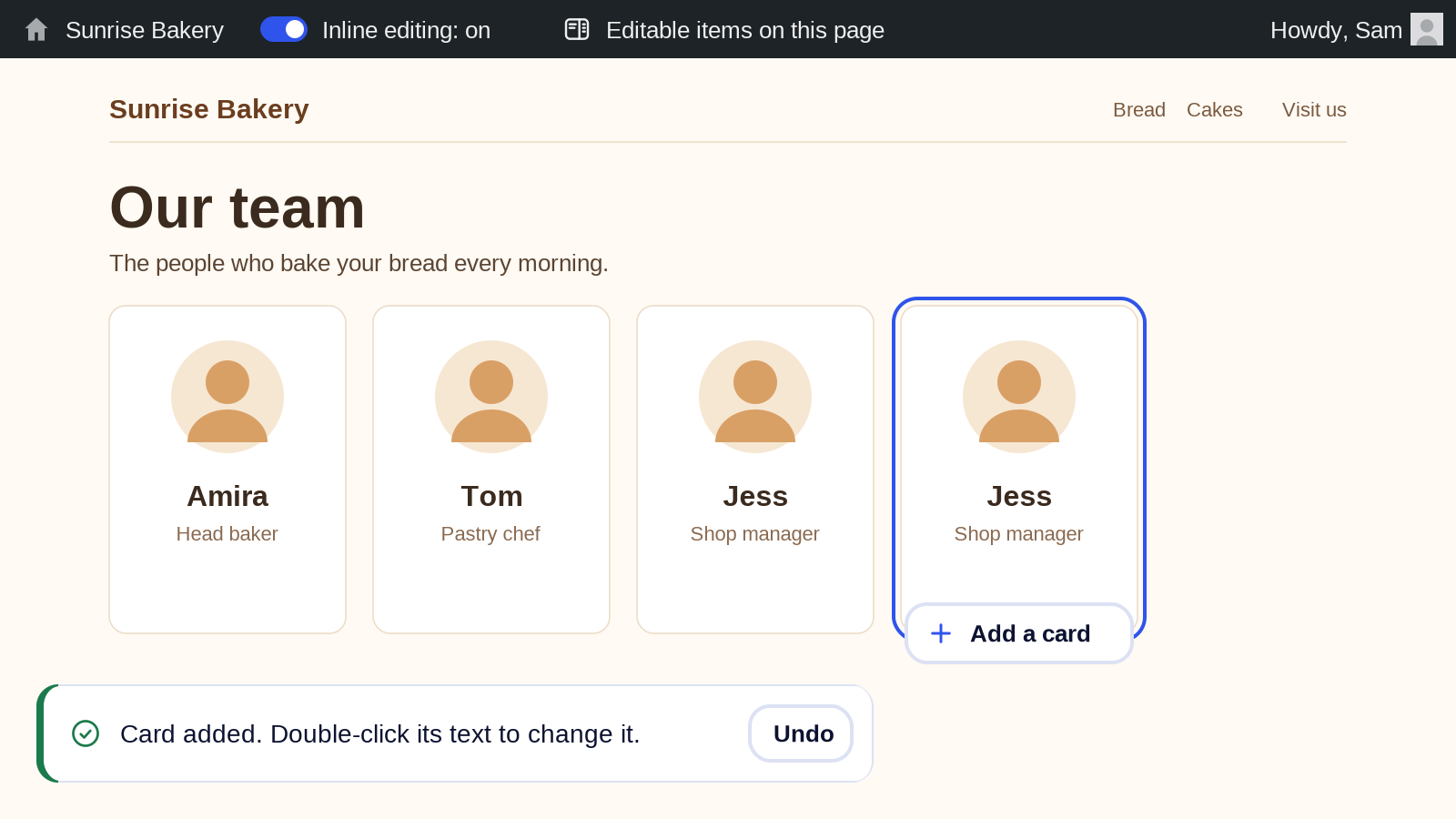
Every save can be undone from the same tab with Ctrl+Z. Undo is refused when someone else has changed the same thing since, so it never overwrites their work. A removed list item can be brought back for an hour.
5. Leave the builder to you
While a page is open in Bricks or the block editor, inline editing pauses on that page. Nobody saves over anybody. The panel says who has the page open.
WordPress still has the final say throughout: nobody can change a post they could not edit in the normal editor. The overview has the full list of abilities.