
Overview
How InlinerWP works
Everything you need to set it up, hand it to your team and get the most from it. Read it from the top or jump to a part.
1. Set up
Ready in three steps
Upload and activate
In WordPress go to Plugins, Add New Plugin, Upload Plugin. Choose the InlinerWP zip, install it and activate it.
Choose who can edit
Go to Settings, InlinerWP. Until you save, editors and administrators can edit every public post type and inline editors can edit pages.
Open a page
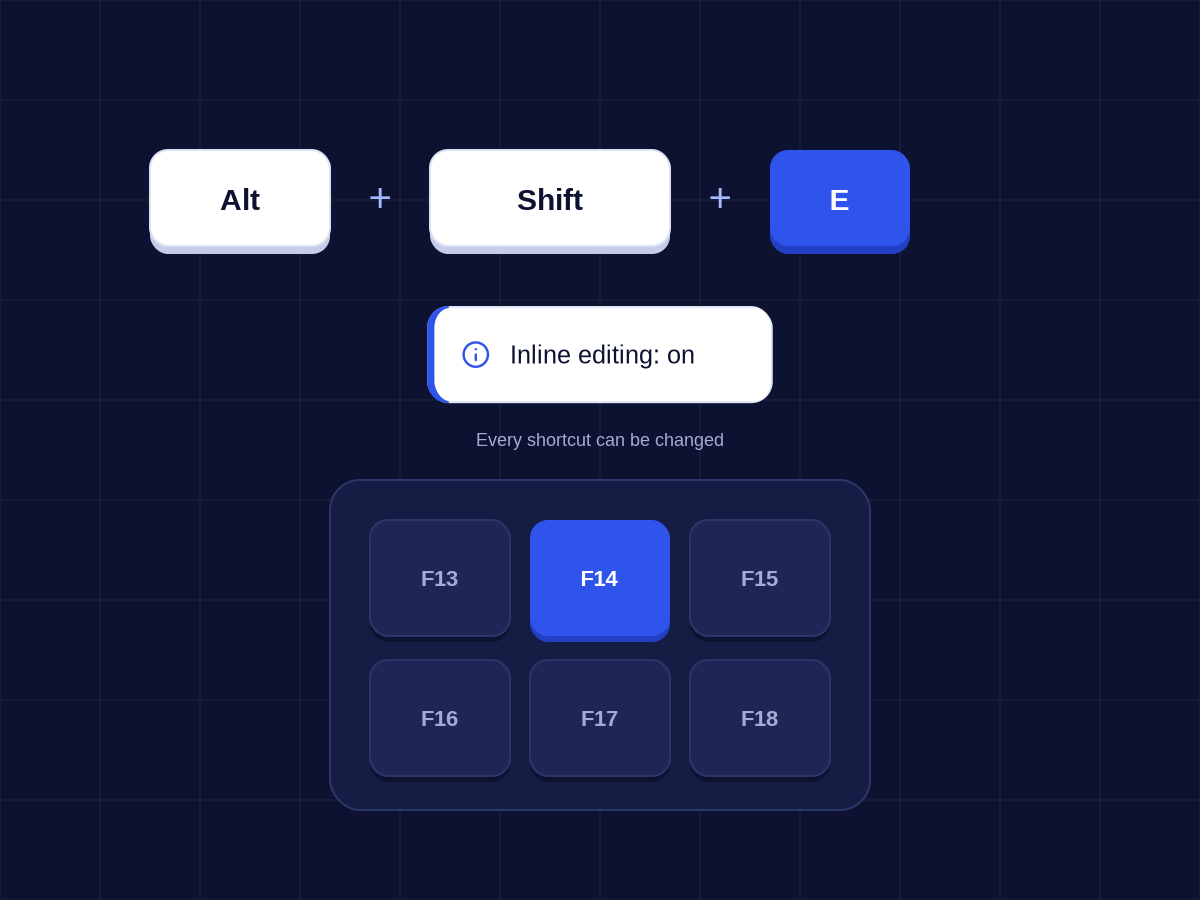
Visit any page while signed in. Use the switch in the toolbar or press Alt+Shift+E to turn editing on.
New to it? A short tour starts the first time someone uses InlinerWP. It points at the switch, an item on the page and the panel. Take it again from the foot of the panel.
2. Editing
Change things where they sit
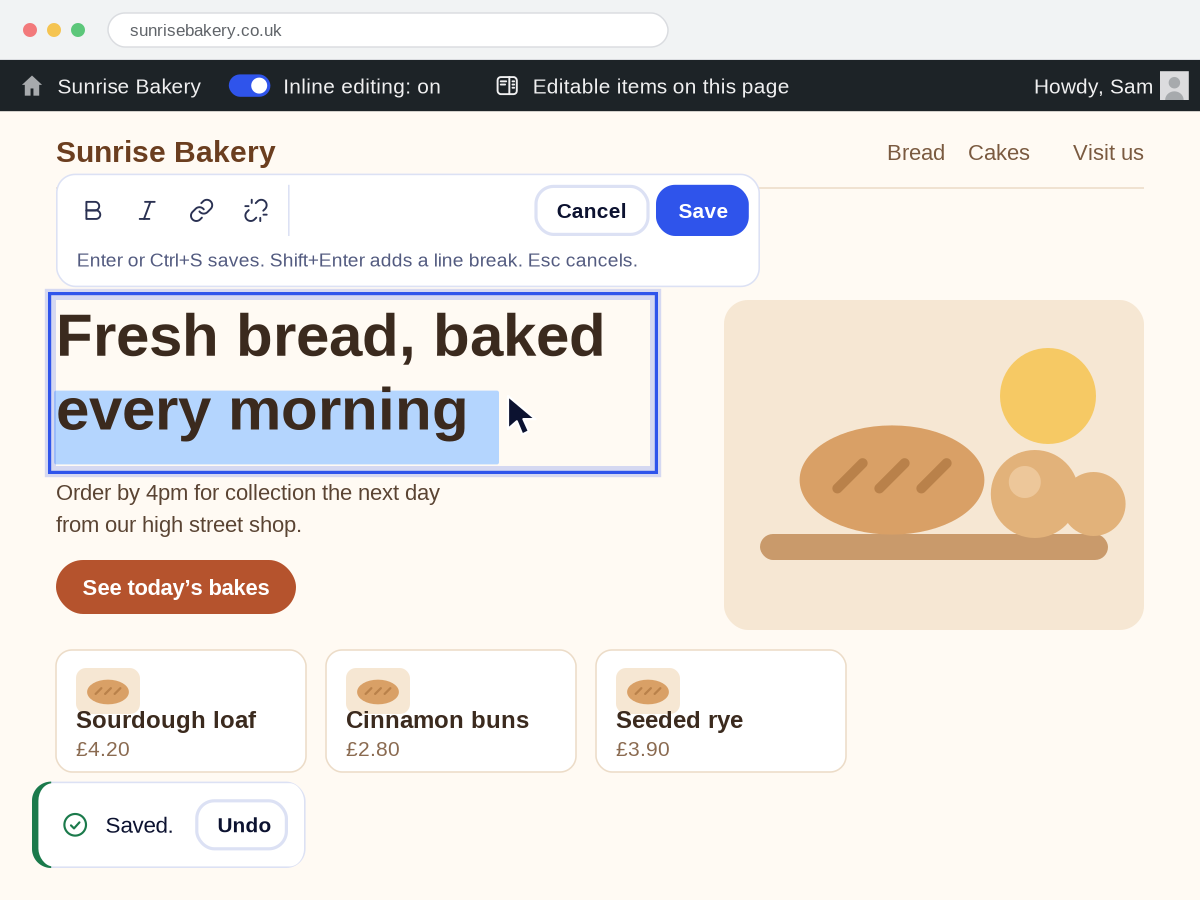
Double-click a heading, a paragraph or a list item to type into it. Press Enter or Ctrl+S to save and Esc to cancel. Every change waits for you to save.
- Bold, italic and links from the toolbar or Ctrl+B, Ctrl+I and Ctrl+K
- Right-click a button to change its text and where it goes
- Pick a new picture from the media library and write its description
- Type a phone number or an email address as a link and it becomes a working link
3. Lists and cards
Add, copy, move and remove
Lists made with an ACF repeater field, shown by a Bricks query loop or an ACF block, can grow from the page. Change each item, add new ones and remove old ones.
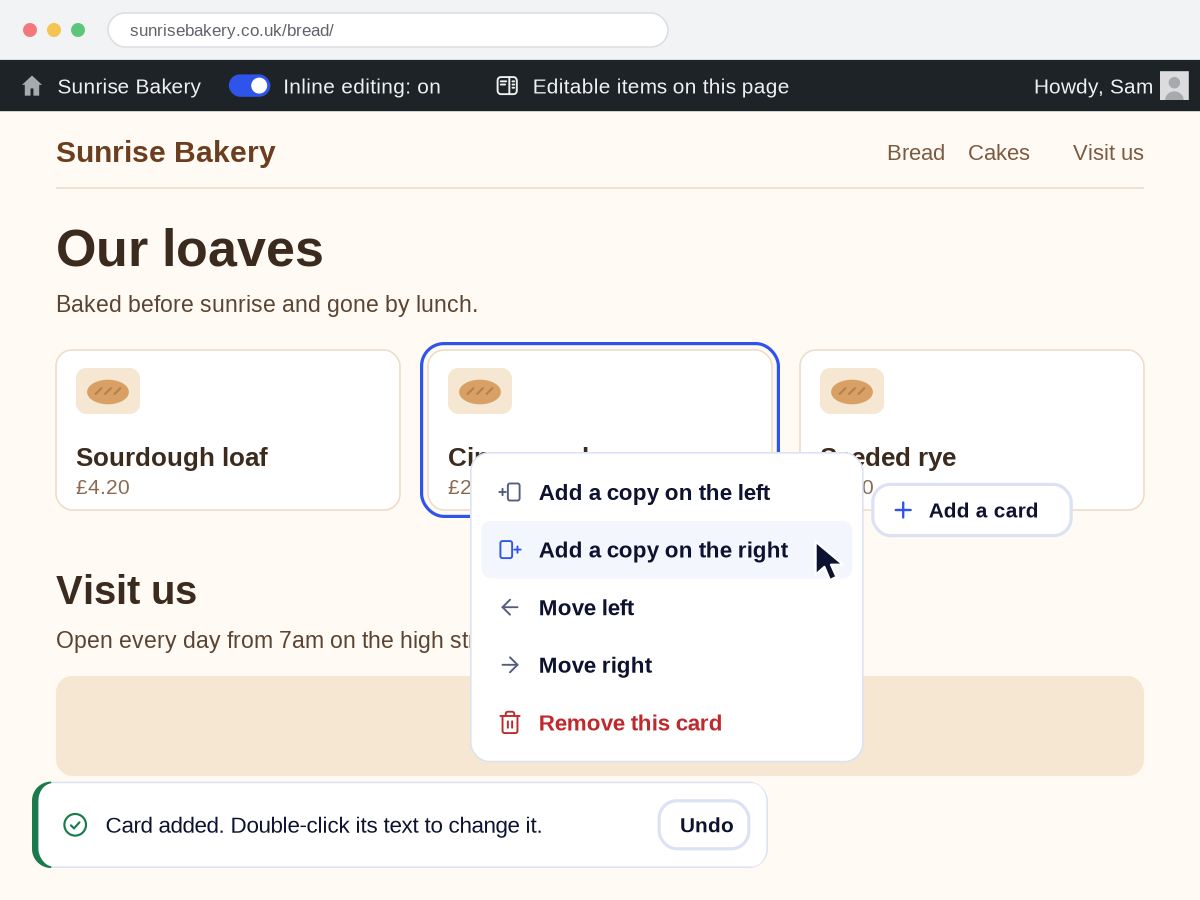
Cards that are not a list work too. Two or more boxes side by side, built the same way, are spotted on their own. Copy one to its left or right, move it along the row or remove it.
- Change all fields of an item, including ones the page does not show
- ACF minimums, maximums and required fields are respected
- A removed item can be brought back for an hour
4. The panel
See the whole page at once
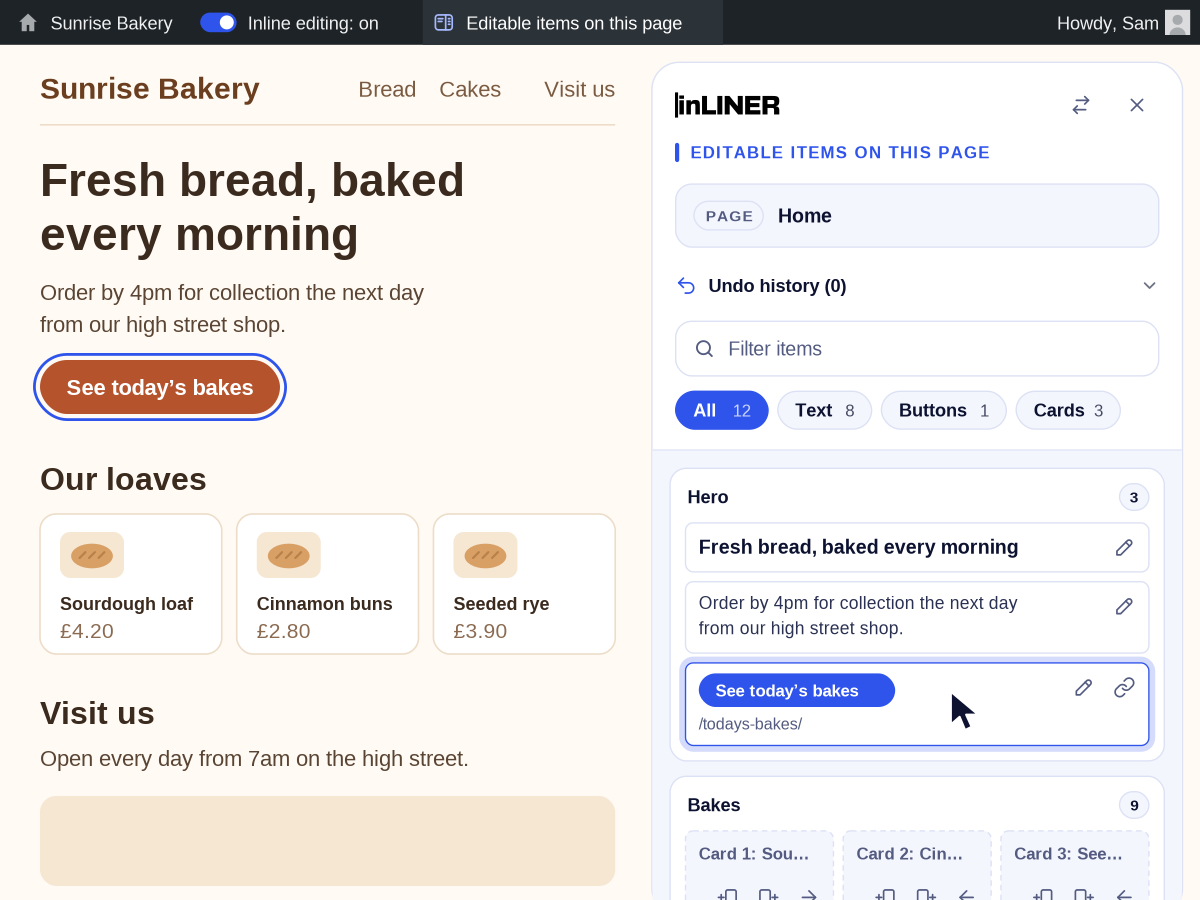
Editable items on this page, in the toolbar, opens a side panel with a map of the page. Each section is a card, laid out as it is on the page. Click an item to find it or double-click it to change it.
The page switcher at the top searches every page you may change and opens it with the panel still open.
5. Permissions
Decide who changes what
Under Settings, InlinerWP, give each role and each person their own abilities and choose the post types they work on.
| Ability | What it allows |
|---|---|
| Change text | Headings, paragraphs, list items and text in Bricks elements |
| Change button text | The words on buttons and text links |
| Change button links | Where buttons and links go, including links inside text |
| Replace images | Pictures from the media library |
| Change image descriptions | The alt text of pictures |
| Add and remove list items and cards | New items in ACF lists, copies of cards, moves and removals |
| Change all fields | Every ACF field of an item or a page, including ones the page does not show |
The Inline editor role
For people who should change the site on the page and nowhere else. No dashboard, no block editor and no Bricks. Extras let them add pages, write posts, use the media library or moderate comments.
Protected content
Give a block or Bricks element the class inlinerwp-protected and nothing inside it can be changed inline by anyone. Whole pages, templates and patterns can be listed too.
WordPress has the final say
Nobody can change a post they could not edit in the normal editor. Administrators always have full access.
6. Shortcuts
Keyboard shortcuts
On a Mac use Option instead of Alt and Cmd instead of Ctrl. Every shortcut can be changed for everyone on the settings page or by each person in the panel.
| Keys | What it does |
|---|---|
| Alt+Shift+E | Switch inline editing on or off |
| Alt+Shift+P | Open or close the panel |
| Alt+Shift+G | Go to another page |
| Alt+Shift+F | Open the page’s fields |
| Ctrl and double-click | Change any item straight away, even with editing off |
| Enter or Ctrl+S | Save |
| Esc | Cancel |
| Ctrl+Z | Undo the last save |
| Ctrl+B Ctrl+I Ctrl+K | Bold, italic and link |
7. Undo and safety
Nothing is final until you say so
Undo any save
Ctrl+Z or Undo in the Saved notice puts back the last change from that tab. The newest change goes back first.
Nobody saves over anybody
Editing pauses while a page is open in Bricks or the block editor. Undo is refused if someone has changed the same thing since.
Safe with page caches
Pages that carry editing controls are never cached, so visitors never get a copy with controls in it.
8. Requirements
What you need
- WordPress 6.2 or later
- PHP 7.4 or later
- Bricks Builder or the block editor, including block themes
- ACF PRO or Secure Custom Fields for lists (text, buttons, links and pictures work without them)
- A modern browser for the people who edit
Works with
Hand over the small changes
Let clients and colleagues change words, pictures and lists on the page while you keep the layout.